Attu UI - Introduction to the Graphical Interface for the Milvus Database

Attu is a powerful tool that greatly simplifies working with the Milvus vector database. Instead of writing Python code or using the API, you can manage collections, search for vectors, and monitor the system using an intuitive graphical interface. Thanks to Attu, working with Milvus becomes accessible not only to experienced developers, but also to data analysts and AI project managers.
Many teams that decide to implement Milvus in their AI projects face a challenge: how to effectively manage a vector database without having to write Python scripts for each operation? How to visualize vector data and understand the relationships between them? How to monitor the system status and optimize performance? Attu solves these problems by offering an administrative tool with a graphical interface.
In this article, you’ll find a comprehensive guide to Attu UI – from installation and first connection to the Milvus database, through collection management and vector search, to advanced knowledge graph visualization features. You’ll learn how to use all the main elements of the interface, how to perform basic and advanced operations, and how to monitor the system.
In this article:
- What is Attu?
- How to install Attu and connect it to the Milvus database?
- What are the main elements of the Attu interface?
- How to manage collections with Attu?
- How to view data in Attu?
- How to search for vectors in Attu?
- How to monitor the Milvus system using Attu?
- Advanced features in Attu
- What are the best practices for working with Attu?
- Attu vs Milvus WebUI – differences
- Frequently asked questions (FAQ) about the Attu graphical interface
- Attu UI for Milvus database – summary
- Need support with Attu implementation or working with Milvus?
What is Attu?
Attu is an administrative tool with a graphical user interface (GUI) for managing the Milvus vector database. It allows you to visualize the status of the cluster, manage metadata, perform queries, and explore data without having to write code.
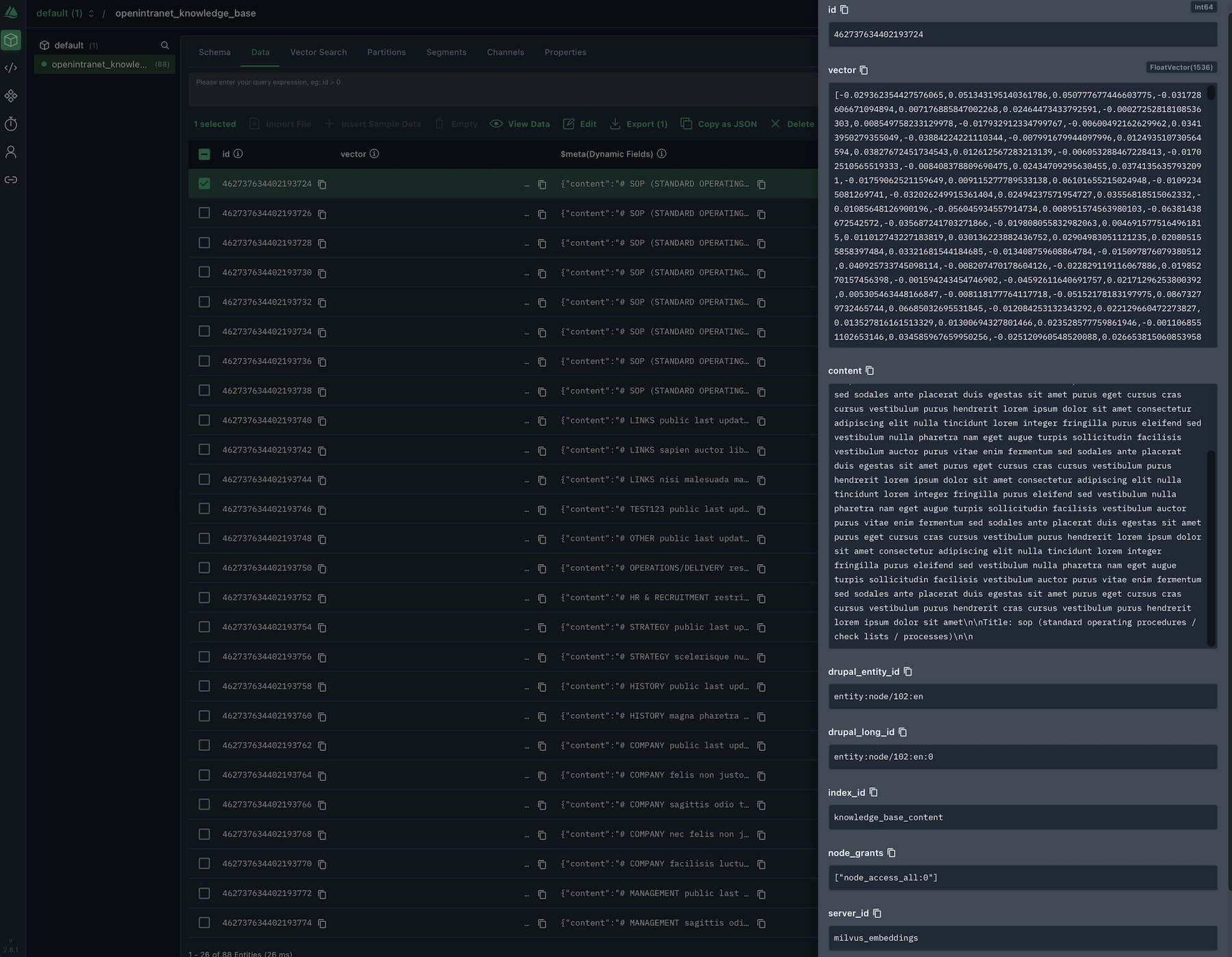
Screenshot showing the Attu interface connected to the Milvus vector database used in the Open Intranet
What are the main features of Attu?
The tool stands out with many practical features, such as:
- Collection management – creating, modifying, and deleting collections from the graphical interface.
- Vector search – performing similarity queries with advanced filters.
- Data visualization – exploring relationships between vectors in the form of knowledge graphs.
- System monitoring – tracking performance metrics and node status.
- User management – access and permission control.
- Text Embedding Functions (v2.6.0+) – built-in embedding generation directly in Attu.
- JSON Index Support (v2.6.0+) – indexing and fast searching in JSON fields.
- Int8 Vector Support (v2.6.0+) – support for Int8 vectors for memory savings.
- Built-in AI Assistant (v2.6.0+) – AI assistant requiring an OpenAI API key.
What's new in Attu 2.6.0+?
The latest versions of Attu (2.6.0+) introduce significant improvements:
- support for Milvus 2.6,
- the ability to add fields to collections after creation,
- JSON indexing,
- built-in AI assistant,
- extended system monitoring tools.
It’s also worth noting that since version 2.6.0, Attu is no longer an open source tool, but is still available under a proprietary license.
How to install Attu and connect it to the Milvus database?
Before you start using Attu, you need to prepare it and connect it to the Milvus database. Below you’ll find a brief description of the process.
Selecting the Attu version
Before installation, it’s important to select the appropriate version of Attu compatible with the version of Milvus you’re working with:
Milvus version | Recommended Attu version |
|---|---|
2.6.x | Attu v2.6.x |
2.5.x | Attu v2.5.10 |
2.4.x | Attu v2.4.12 |
2.3.x | Attu v2.3.5 |
2.2.x | Attu v2.2.8 |
Important license information:
- Attu v2.5.12 and earlier – available under the Apache 2.0 license (open source).
- Attu v2.6.0 and later – available under a proprietary license.
For Attu version 2.6.0 and later, you can use the official binaries and report bugs, but you don’t have access to the source code. Earlier versions (≤2.5.12) remain available as open source.
Installing the Attu desktop application
Attu is available as a desktop application for Windows, macOS, and Linux. The installation process is very easy:
- Download the application from GitHub Releases.
- Select the version appropriate for your operating system and compatible with your Milvus version.
- Install the application according to the instructions for your system.
Note for macOS (M-chip) users: if you get an error saying "attu.app is damaged and cannot be opened" after installation, run the following command in the terminal:
sudo xattr -rd com.apple.quarantine /Applications/attu.app
This solves the problem with macOS security features that may block applications downloaded from external sources.
Installation using Docker
Alternatively, you can run Attu as a Docker container:
docker run -p 8000:3000 -e MILVUS_URL=localhost:19530 zilliz/attu:v2.6
Docker parameters:
- -p 8000:3000 – maps container port 3000 to host port 8000.
- -e MILVUS_URL=localhost:19530 – Milvus server address (use the IP address accessible from the container, not localhost if Milvus is outside Docker).
- zilliz/attu:v2.6 – Attu version (adjust to your Milvus version).
After starting, open your browser and go to http://localhost:8000.
Connecting to the Milvus vector database
After launching Attu, the first step is to connect to the Milvus instance:
- Run Milvus Standalone (locally) or prepare a connection to Zilliz Cloud.
- Open Attu and enter the connection information:
- Milvus Address: Milvus server URI (e.g., http://localhost:19530)
- Token: optional, required for Zilliz Cloud.
- Click Connect to connect to the Milvus vector database.
Attu supports both local Milvus Standalone instances and managed instances in Zilliz Cloud, giving you flexibility in choosing your working environment.
Read also: Milvus Vector Database on the Intranet. How Does RAG Improve Searching?
What are the main elements of the Attu interface?
The Attu interface consists of several main sections accessible from the left navigation panel. Each section is responsible for a specific aspect of Milvus database management.
Navigation panel (on the left)
- Home View – main view with an overview of the system and basic information.
- Collections – collection management (creation, modification, deletion).
- Data Explorer – browsing data in collections.
- Vector Search – vector search with advanced options.
- System View – monitoring the system and performance metrics.
- User & Role Management – user and role management.
Each section offers dedicated tools and features, which we’ll discuss in detail later in this article.
How to manage collections with Attu?
Collections in Milvus are containers that store vector data along with metadata. Attu allows you to fully manage collections without having to write code.
Creating a collection in Attu
The process of creating a new collection in Attu:
- Click the Collection icon in the left navigation panel.
- Click Create Collection to open the form.
- Fill out the form:
- Collection Name – a unique name for your collection.
- Primary Key Field – usually ID.
- Vector Field – vector field with dimension specification (e.g., 768 for embeddings).
- Scalar Fields – scalar fields for storing metadata (optional).
- Click Create to create the collection.
When creating a collection, it’s important to specify the dimensions of the vector field correctly. They must correspond to the dimensions of the vectors you plan to store.
Loading the collection into memory
All CRUD (Create, Read, Update, Delete) operations in Milvus require loading the collection into memory. This is a crucial step before performing any operations. How to do it?
- Hover over the collection you want to load.
- Click the Load icon to the right of the entry.
- In the dialog box, click Load to confirm.
- The status will change to "Loaded For Search" when the operation is complete.
Loading a collection may take a while, depending on the amount of data. Once loaded, you can perform searches and other operations.
Unloading a collection
When you no longer need a collection in memory, you can release it:
- Hover over the loaded collection in Attu.
- Click the Release icon.
- Confirm in the dialog box.
- The status will change to "Unloaded."
Unloading the collection frees up memory resources, which is especially important in production environments with limited memory.
Viewing the collection schema
The collection schema defines the data structure. In Attu, you can easily view the schema details:
- Click on the collection name to open the details.
- Go to the Schema tab.
- You will see information about:
- Field names.
- Field types (Int64, FloatVector, etc.).
- Dimensions (for vector fields).
- Index types.
- Index parameters.
Understanding the schema is crucial for working effectively with vector data.
Adding fields after creating a collection (v2.6.0+)
Starting with version 2.6.0, Attu allows you to add new fields to a collection after it has been created. This greatly increases the flexibility of the schema:
- Open the collection and go to the Schema tab.
- Click the add field button (usually marked with a "+" icon).
- Define the new field:
- Select the field type (scalar or vector).
- Specify the name and parameters.
- Save your changes – the field will be added to the collection.
This feature is particularly useful when you need to extend an existing collection with additional metadata without having to create a new collection and migrate data.
Deleting a collection in Attu
Deleting a collection is an irreversible operation:
- Select the collection to be deleted.
- Click the Trash icon.
- Type "delete" to confirm the operation.
- Click Delete to delete the collection.
Note: Deleting a collection clears all data stored in it. Make sure you have a backup before deleting.
See also: Recommended Vector Databases (VDB) for Drupal
How to view data in Attu?
Once the collection is loaded, you can view the stored data in a convenient table view:
- Table view with IDs, vectors, and dynamic fields.
- Filtering data by specific conditions.
- Details of each record available upon clicking.
Attu also supports dynamic fields that allow you to store metadata (e.g., text) together with vectors without predefining the structure.
How to search for vectors in Attu?
Vector search is one of Attu's most important features. It allows you to find similar vectors in a collection based on similarity metrics.
Basic search
The process of performing a basic search:
- Go to the Vector Search tab.
- Select the collection and vector field from the drop-down lists.
- Enter the vector(s) in the "Enter vector value" field (with the same dimensions as the field).
- Set the search parameters:
- TopK - number of results to return.
- Index parameters (depending on the index type used).
- Click Search to perform the search.
The results are displayed in a table with ID, similarity results, and dynamic fields.
Advanced filtering
Attu allows you to add filters to your search:
- Click Advanced Filter.
- Use AND or OR operators to combine conditions.
- The filter expression updates automatically as you add conditions.
Filters allow you to narrow down your search results precisely, e.g., only documents from a specific category or within a specific date range.
Searching in JSON fields (v2.6.0+)
Attu v2.6.0+ offers advanced support for JSON fields with JSON path indexing:
- JSON Index Support – the ability to create indexes on JSON fields for significantly better query performance.
- JSON Path Queries – search nested JSON structures using JSON paths.
- Performance optimization – JSON indexes significantly speed up queries on collections with JSON data.
This feature is particularly useful when you store complex metadata in JSON format and need to search quickly within its structure.
Searching with Time Travel
Milvus maintains a timeline for all insert and delete operations, which allows you to search for data from the past:
- Click Time Travel.
- Select a point in time in the dialog box.
- Perform a search – you’ll see the data from the selected moment.
This is a useful feature for analyzing historical data states or debugging problems.
Visualization of results
Attu offers advanced visualization of relationships between vectors:
- The results table shows IDs, similarity scores, and dynamic fields.
- Explore button – visualizes the relationships between the query vector and the results in the form of a knowledge graph.
- Double-clicking on a node expands the graph with additional connections.
The knowledge graph shows:
- The central node – representing the query vector.
- Connected nodes – representing search results.
- Interactive exploration – clicking on a node shows detailed information.
This feature is particularly useful for understanding relationships between data and discovering hidden connections.
How to monitor the Milvus system using Attu?
Attu offers advanced tools for monitoring the status and performance of the Milvus system, especially in version 2.6.0+.
Milvus system view
- Click the System View icon in the left panel.
- The Dashboard contains:
- Topology – Milvus instance structure (click on a node to see details).
- Info – information about the system and configuration of the selected node.
- Configuration – overview of all Milvus settings and environment variables (v2.6.0+).
- Slow Requests – list of slow queries with information about execution time and parameters (v2.6.0+).
Topology shows the system architecture, including coordinators, query nodes, and data nodes.
System Segments View (v2.6.0+)
A new feature that allows you to view system segments:
- List of segments with information about their status and size.
- Direct navigation to related collections.
- Segment details – ID, collection, status, size.
This tool is particularly useful for optimizing performance and managing resources.
Task management with Task Management (v2.6.0+)
Attu allows you to track and manage background tasks through options such as:
- List of active tasks – compaction, index-building, import, data synchronization.
- Task status – tracking progress and execution status.
- Task history – overview of completed operations.
Task management allows you to monitor long-running operations and quickly detect problems.
Node list view
List of all nodes managed by coordinators:
- Sorting by metrics:
- CPU Core Count – number of CPU cores.
- CPU Core Usage – CPU utilization.
- Disk Usage – disk usage.
- Memory Usage – memory usage.
- Mini topology showing the selected node and its coordinator.
Monitoring metrics allows you to quickly detect performance issues and optimize resources.
Advanced features in Attu
Attu v2.6.0+ introduces several advanced features that significantly expand the tool's capabilities.
Built-in AI assistant
Attu offers a built-in AI assistant that helps you work with your database.
- Requirements: requires entering the OpenAI API key in the settings.
- Features: assistance in creating queries, data analysis, collection optimization.
- Access: available directly in the Attu interface after configuration.
The AI assistant can help you formulate complex queries, analyze search results, and optimize collection schemas.

Screenshot displaying the Attu interface, including the built-in AI assistant, running with the Milvus vector database for the Open Intranet
REST API Playground (Beta)
Attu v2.5.7+ offers REST API Playground, a tool for testing Milvus API calls:
- API testing in the browser – the ability to make API calls directly from the Attu interface.
- Code templates – ready-made templates for popular operations.
- State saving – the ability to save and reuse query configurations.
- Response visualization – instant display of query results.
This tool is especially useful for developers who want to quickly test API calls before integrating them with their application.
Multi-server support
Attu allows you to manage multiple Milvus servers simultaneously:
- MILVUS_SERVERS environment variable – configuration of multiple servers.
- Switching between servers – easy switching between different Milvus instances.
- Connection management – central management of all connections.
This feature is useful in environments with multiple Milvus instances (dev, staging, production).
What are the best practices for working with Attu?
When working with Attu, it’s important to keep a few key rules in mind.
- Always load the collection before searching – CRUD operations require loading into memory.
- Use knowledge graphs to explore relationships between data – this helps you understand the data structure.
- Monitor the system regularly using System View – this allows for early detection of problems.
- Save your configuration – Attu settings are stored in your browser's local storage (you can export them from the settings page).
Attu vs Milvus WebUI – differences
It’s worth knowing that Milvus offers two different graphical tools. Here is a comparison of both interfaces:
| Feature | Attu | Milvus WebUI |
|---|---|---|
| Form of operation | GUI (desktop/web application) | GUI (built-in) |
| Users | Developers | Maintainers, developers |
| Installation | Separate tool | Built into Milvus |
| Main features | Database management, data operations | System monitoring, metrics |
| Monitoring (v2.6.0+) | System Segments View, Task Management, Slow Requests | Basic system metrics |
| Advanced features | AI Assistant, REST API Playground, JSON Index | Limited |
Attu is more focused on data operations and offers advanced management features (especially in version 2.6.0+), while Milvus WebUI (available at http://${MILVUS_PROXY_IP}:9091/webui) focuses on basic system monitoring and performance metrics.
In version 2.6.0+, Attu partially overlaps with Milvus WebUI features thanks to the extended System View.
Frequently asked questions (FAQ) about the Attu graphical interface
Check out the most frequently asked questions and answers about the Attu tool.
Is Attu free?
Attu v2.5.12 and earlier versions are available under the Apache 2.0 license (open source). Starting with v2.6.0, Attu can be downloaded under a proprietary license. You can use the official binaries and report bugs, but you don’t have access to the source code. For more information, see the license page.
Can I use Attu with Zilliz Cloud?
Yes, Attu supports both local Milvus Standalone instances and managed instances in Zilliz Cloud. Just provide the appropriate address and token.
How often should I monitor the system in Attu?
In production environments, regular monitoring is recommended, especially after large insert operations or during performance optimization. In development environments, monitoring may be less frequent. In Attu v2.6.0+, you can also track slow requests and manage background tasks.
Can I use Attu to manage multiple collections at the same time?
Yes, Attu allows you to manage multiple collections. You can switch between them and perform operations on each of them independently. Additionally, you can manage multiple Milvus servers using the MILVUS_SERVERS environment variable.
How do I use the built-in AI Assistant in Attu?
The AI Assistant is available in Attu v2.6.0+. To use it, you need to enter your OpenAI API key in the Attu settings. Once configured, the assistant will help you create queries, analyze data, and optimize collections.
Can I add fields to a collection after it has been created?
Yes, starting with Attu v2.6.0, you can add new fields to existing collections without having to create a new collection and migrate data. Go to the Schema tab and use the add field option.
How do I use the REST API Playground?
The REST API Playground is available in Attu v2.5.7+ (beta). It allows you to test Milvus API calls directly in your browser, with the ability to save code templates and visualize responses. It’s a useful tool for quickly testing the API before integrating it with your application.
Attu UI for Milvus database – summary
Attu is a powerful tool that greatly simplifies working with Milvus. With its intuitive graphical interface, you can:
✅ manage collections without writing code,
✅ visualize and explore vector data,
✅ perform similarity searches with advanced filters,
✅ monitor the system status,
✅ discover relationships between data using knowledge graphs.
The built-in AI assistant (available in version 2.6.0+) makes it easy to learn the tool. It helps with query creation, data analysis, and collection optimization, which is especially useful for novice users.
Start by connecting to Milvus, creating your first collection, and experimenting with vector search. Attu makes working with vector databases accessible to everyone.
Need support with Attu implementation or working with Milvus?
At Droptica, we help organizations unlock the full potential of vector databases — from installing and configuring Milvus, to integrating with existing systems, to building AI-powered solutions such as semantic search, enterprise AI chatbots, and RAG pipelines.
Check out our generative AI development service and see how we can help you build modern, intelligent data-driven solutions.