
Automated Content Creation in Drupal: Field Widget Actions Tutorial with Real Results

Are you running a news portal or planning to create one? Information gathering, content writing, proofreading, SEO optimization, tag preparation – all these tasks consume a significant portion of the editorial team’s time. What if you could reduce this research time by up to 90% through automated content creation?
In this article, I present a practical Drupal setup that uses AI-powered modules to generate editorial content with minimal manual input. This includes automatic information retrieval based on the title, tag generation, content creation, and detailed data fetching – all directly in your CMS, without switching between different tools. Read on or watch the episode from the Nowoczesny Drupal series.
In this article
- How does automated content creation work in a sports portal?
- What AI modules are needed for automated content creation in Drupal?
- How to configure the AI Automators module for content fields?
- How to add generation buttons to forms with Field Widget Actions?
- How to create AI prompts for different data types?
- How to use tokens in prompts for content generation?
- Practical example: automated content creation for match reports
- What are the applications of automated content creation for different portal types?
- Automated content creation in Drupal - summary
How does automated content creation work in a sports portal?
Before diving into technical configuration details, it’s worth seeing the end result first to illustrate Drupal content automation capabilities. The demo uses a specially prepared content type called “Matches.” In the match creation form, there’s a field for tags and three distinctive buttons: “Generate tags,” “Fetch lineups,” and “Fetch goalscorers.”
Let’s take a match from July 31, 2024, as an example. After saving basic match information and entering content editing mode, you can click the “Generate tags” button. The system automatically analyzes the title and match context, then creates appropriate tags. In this case: “Jagiellonia,” “football,” and “European cups,” since this was a European competition match.
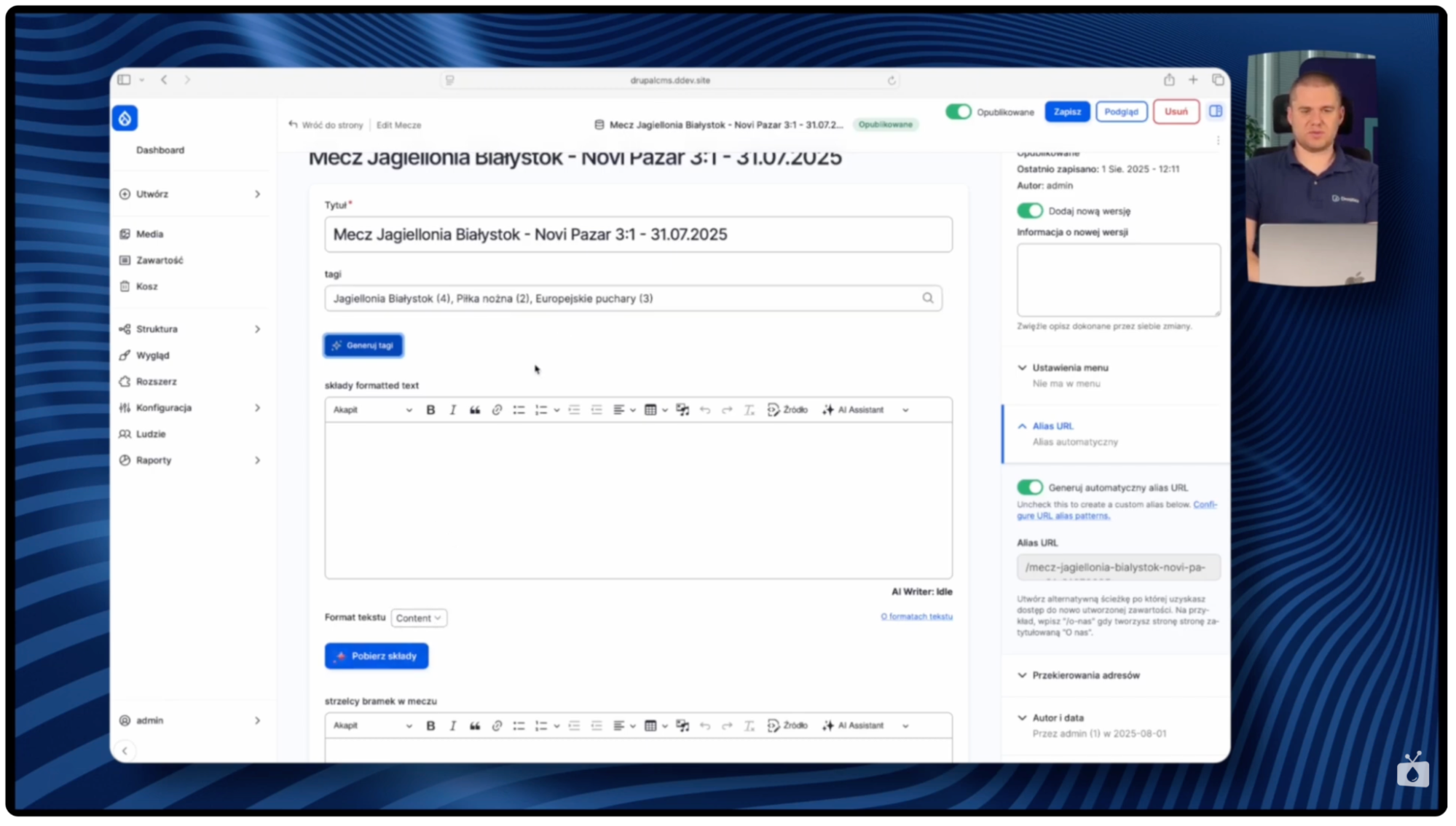
Next, the “Fetch lineups” button triggers automatic internet searching and generates a list of players from both teams. The list appears in the content editor, initially in a not-so-readable format. Here’s where the CKEditor addon comes to help. Simply select the generated text, choose the “Format HTML” option, and click “Reformat” to automatically format the list in a readable way.
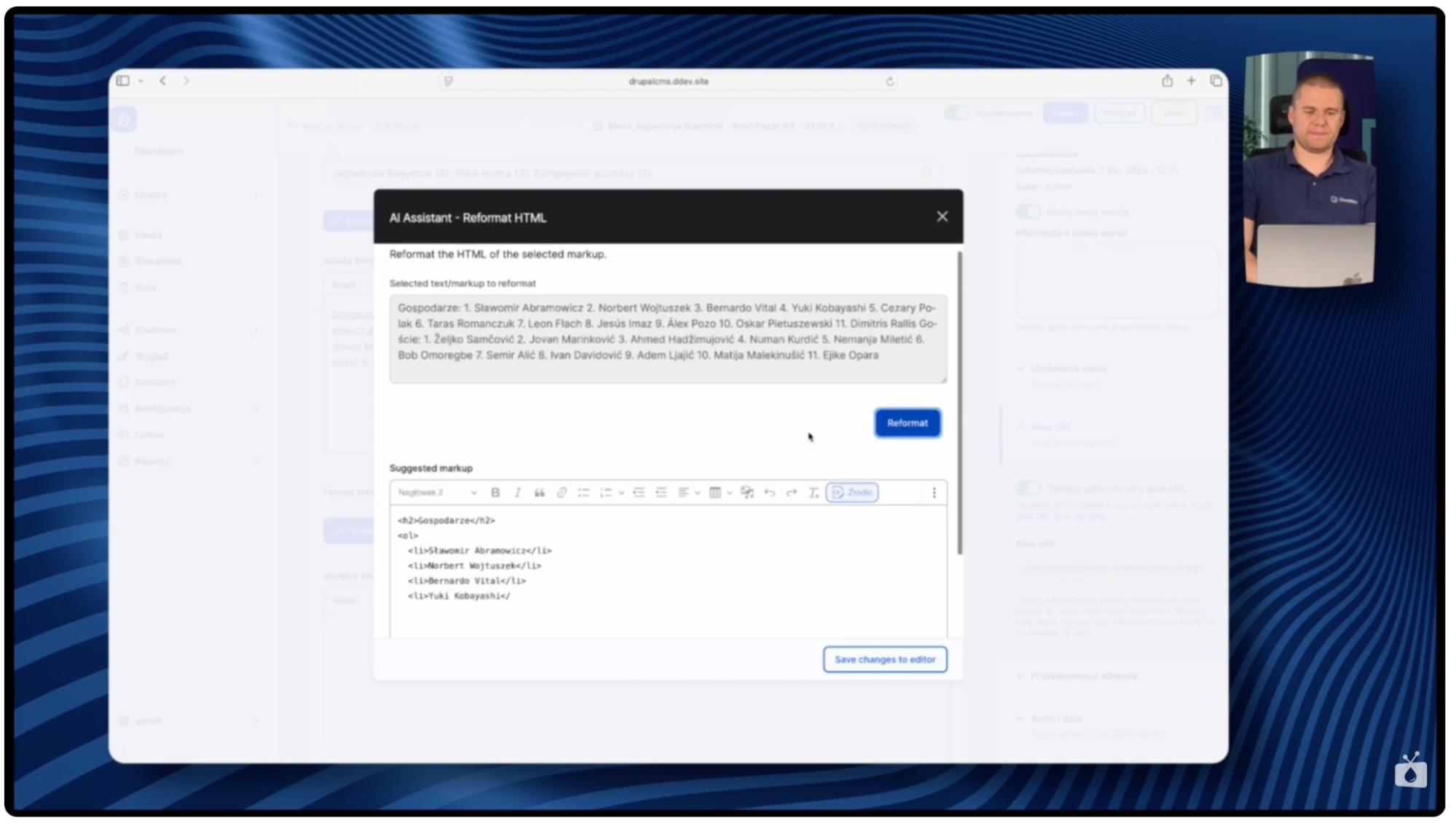
The same can be done with the “Fetch goalscorers” button. The system generates a list of scorers along with the minutes when goals were scored, which can then be quickly formatted using the editor function. The final result? A complete match description containing automatically generated tags, home and away team lineups, and a list of goalscorers. The entire process, which would manually take an editor 20 to 30 minutes of searching and transcribing data, now takes literally a dozen seconds. You can even add another button to generate a full text description of the match based on the already collected information.
What AI modules are needed for automated content creation in Drupal?
To implement the presented setup in your Drupal system, you need several key modules from the artificial intelligence ecosystem. The foundation of the entire configuration is the AI module version 1.2 alpha. This is a set of tools that forms the foundation for all AI-related operations in Drupal. It’s worth noting that despite the alpha version, the module works stably and can be used in production projects, though as always with software in the development phase, minor system warnings may appear.
Within the AI module, there’s a crucial submodule for our setup called Field Widget Actions. This is the core module around which we’ll build the entire automatic content generation functionality. Field Widget Actions enables adding interactive action buttons directly to form fields in Drupal, allowing editors to conveniently use AI capabilities without leaving the content editing interface.
The second fundamental element is the AI Automators module, also part of the AI package. This module is responsible for actually performing automation-related operations – from analyzing input data, through communicating with artificial intelligence models, to processing and formatting results. AI Automators is the engine that makes buttons added by Field Widget Actions actually do their work, connecting with external AI services such as OpenAI GPT or Claude.
How to configure the AI Automators module for content fields?
After installing the necessary modules, you can proceed to configure specific fields in the content type. In the example demo, a specially prepared content type called “Matches” was used.
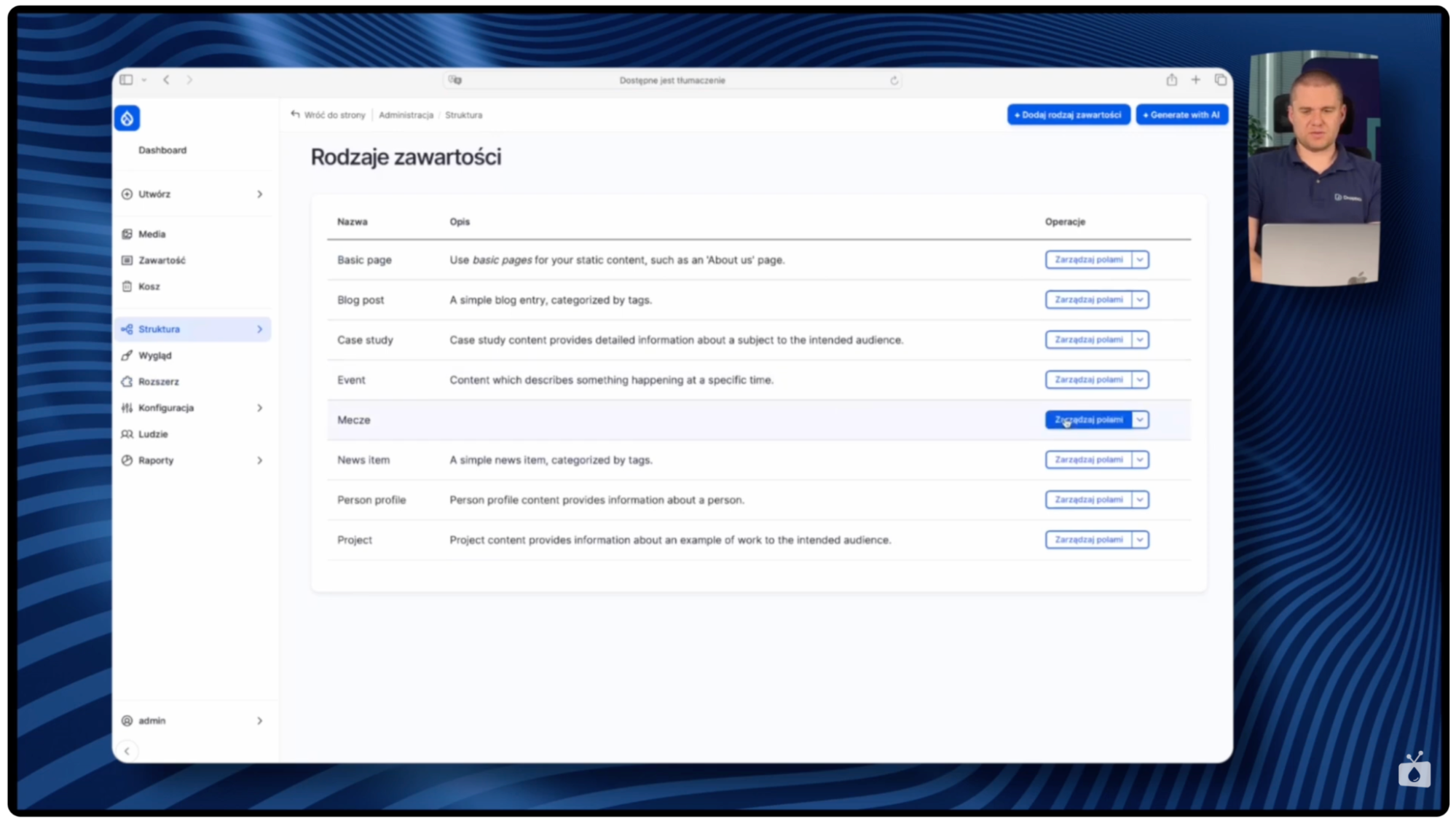
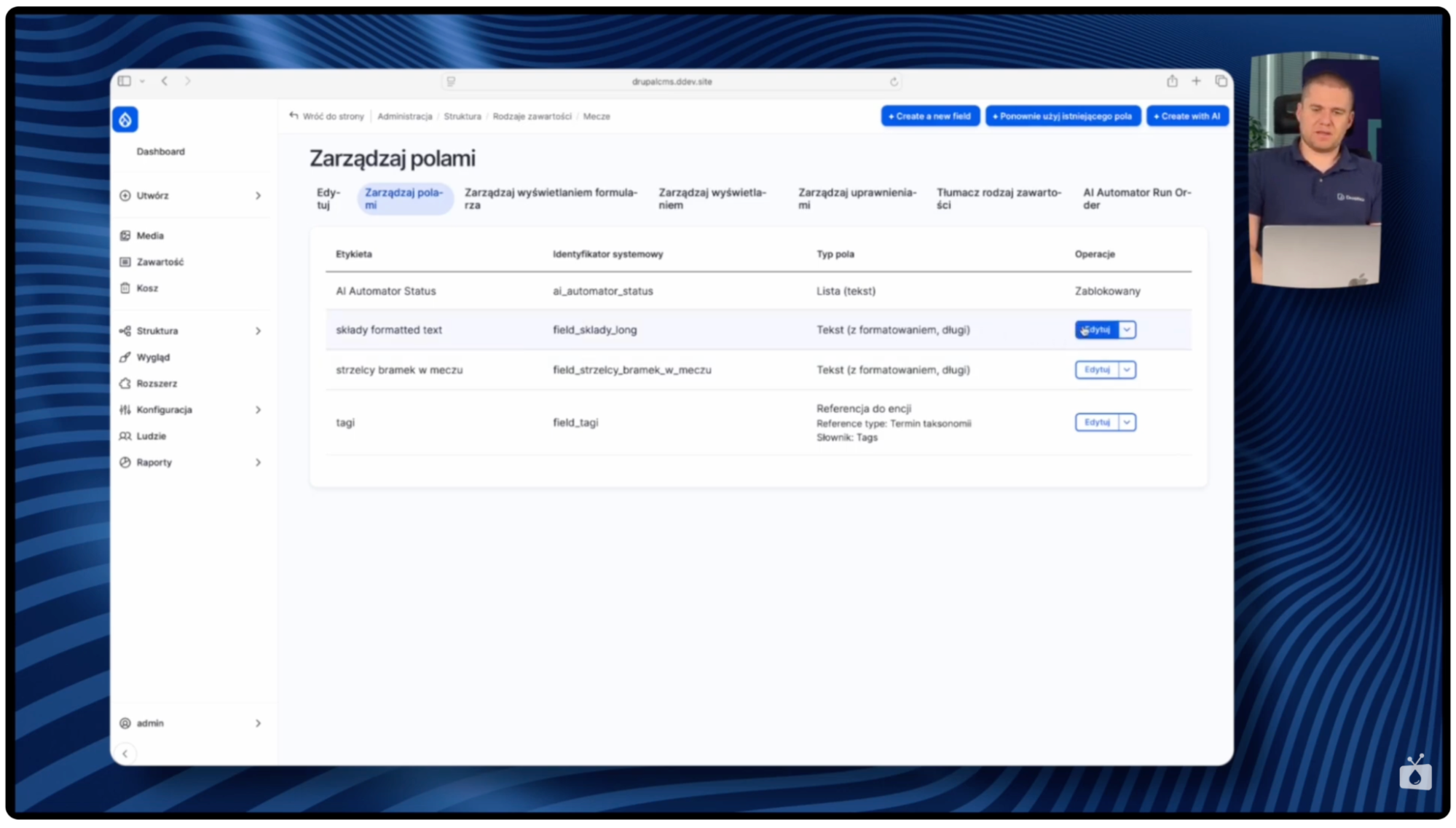
To enable AI automation capabilities for a given field, you need to edit it via the menu Structure → Content types → [type name, e.g., Matches] → Manage fields → Edit [next to field name].
In the field settings, there’s a key option called “Enable AI Automator.” This is what activates integration with artificial intelligence modules.
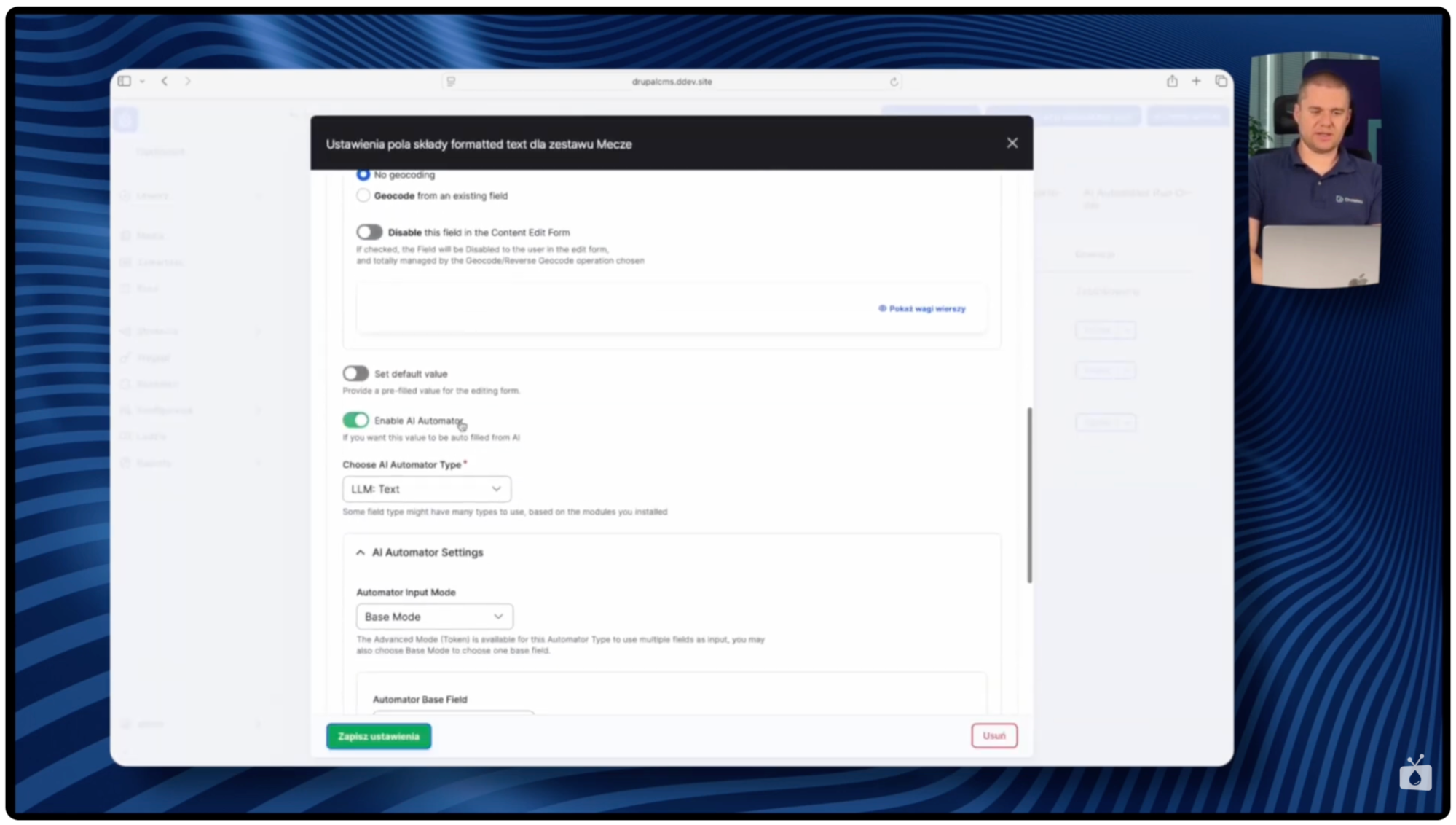
After checking this option, a list of available configurations appears. In the basic example, you can select the default configuration, leaving the prompt field deliberately empty at this stage. The most important step that cannot be skipped is checking “Field Widget.” This option makes AI functionality available directly in the field widget on the content editing form. Without this, automation will work in the background but won’t be available to editors in the form of interactive buttons. After configuring all capabilities, save the field settings.
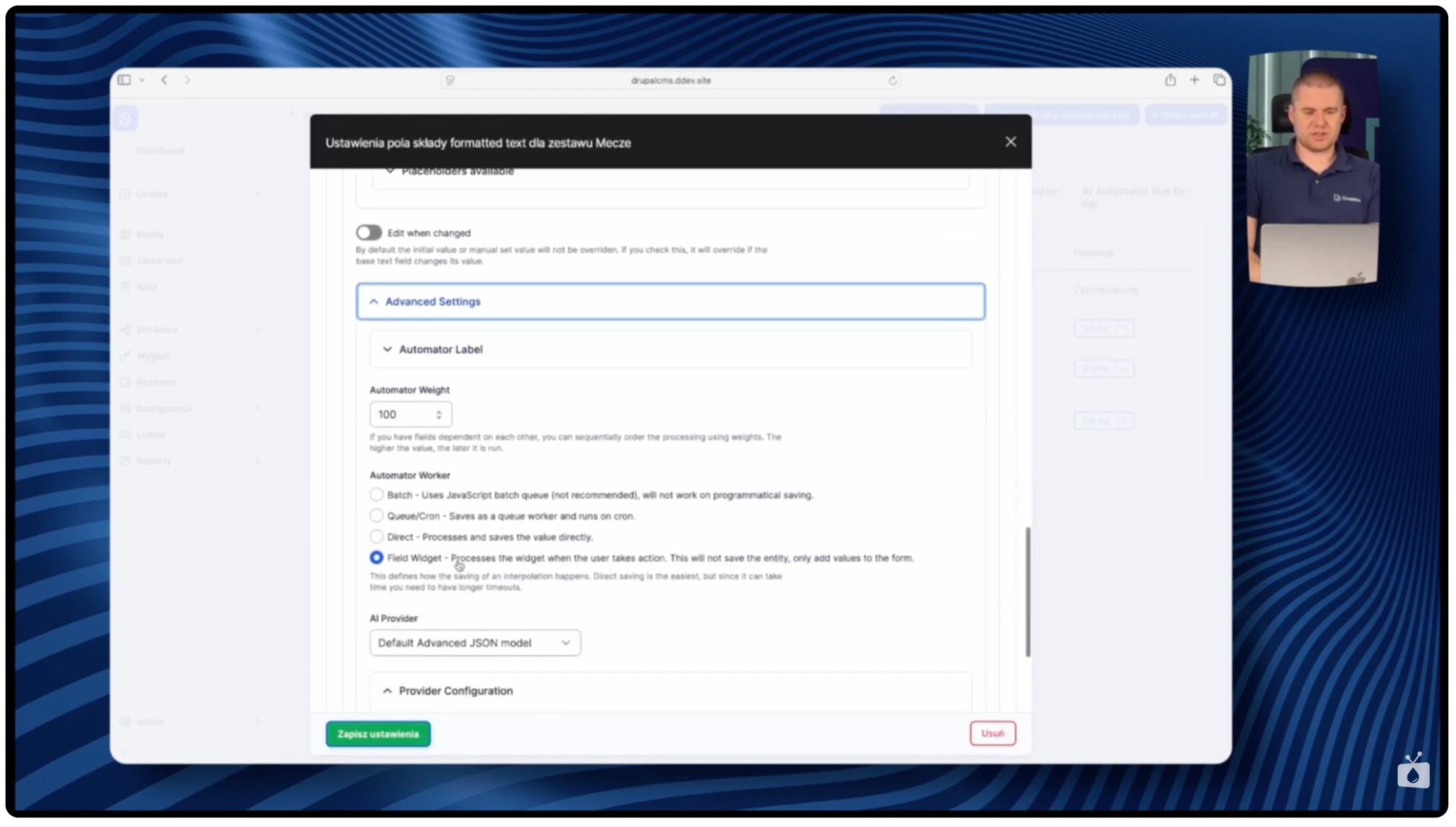
Perform identical configuration for all fields where you plan to use AI capabilities. In this demo, three fields were configured: team lineups, goalscorers, and tags.
It’s worth noting that taxonomy fields (such as tags) differ slightly from standard text fields. They have a different Automator Type name, but the operating principle remains the same. For the tags field, a specific prompt was applied: “create a maximum of three tags that will match the title.” That’s why in the generated result, we get exactly three tags, no more and no less. The system strictly follows instructions contained in the prompt.
How to add generation buttons to forms with Field Widget Actions?
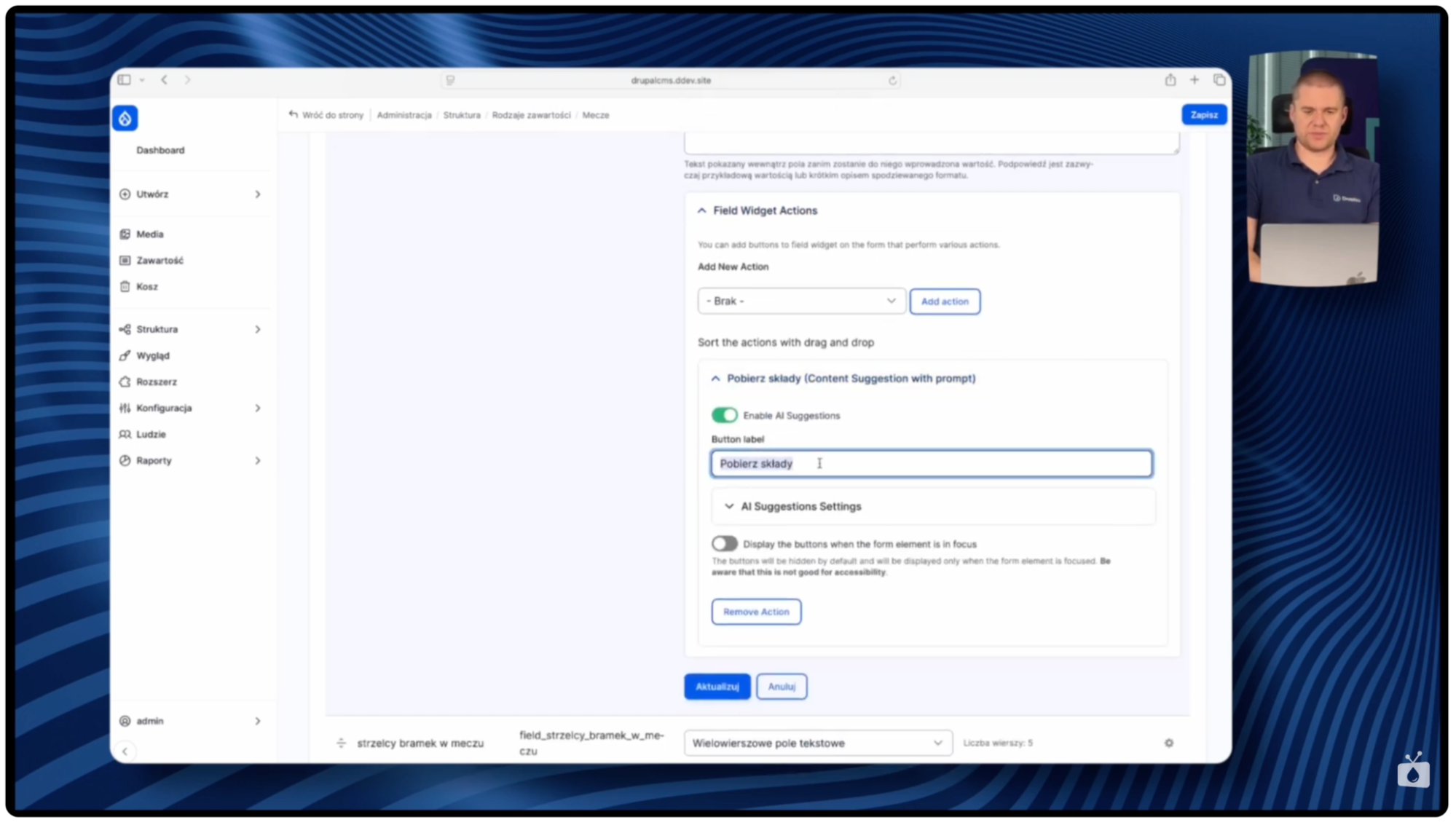
After enabling the Field Widget option for individual fields, you can proceed to configure interactive buttons that will be available to editors. These buttons are added through the Field Widget Actions mechanism. After entering the form display management for a given content type (Structure → Content types → [type name, e.g., Matches] → Manage form display), a new option “Field Widget Action” appears next to fields for which AI automation was enabled.
By clicking on Field Widget Action configuration for the selected field, you can add a new action that will be available as a button. After adding an action, it becomes visible directly next to the field on the content editing form. This button enables editors to generate content with one click, without needing to understand the technical side of artificial intelligence operation or manually calling APIs directly from the content editing form.
In the action configuration, you select available AI models configured in the system. In the example demo, OpenAI GPT-4o was used with Search Preview function enabled, which allows the model to search current information on the internet. This is a key functionality for this use case because information about match lineups or goalscorers must be fetched in real-time from the web. These are not data that the AI model knows from its training. Thanks to Search Preview, the model can search for current information and process it according to instructions contained in the prompt.
How to create AI prompts for different data types?
The key to effectively using AI automation in Drupal is properly formulating prompts for each type of data to be generated. A prompt is an instruction passed to the artificial intelligence model that precisely specifies what should be done, in what format, and with what constraints. The more detailed and precise the prompt, the better and more predictable results we get from the AI system.
For the “Team lineups” field, you can apply a prompt based on the title field, which contains the match name. Example instruction: “based on the title field, fetch team lineups.” Further in the prompt, you specify the exact format in which data should be returned. Define the list structure containing the team name, and below it a list of players with jersey numbers. Such precision in defining output format is extremely important. Thanks to this, we receive data always in the same, predictable structure, which can then be easily formatted in CKEditor.
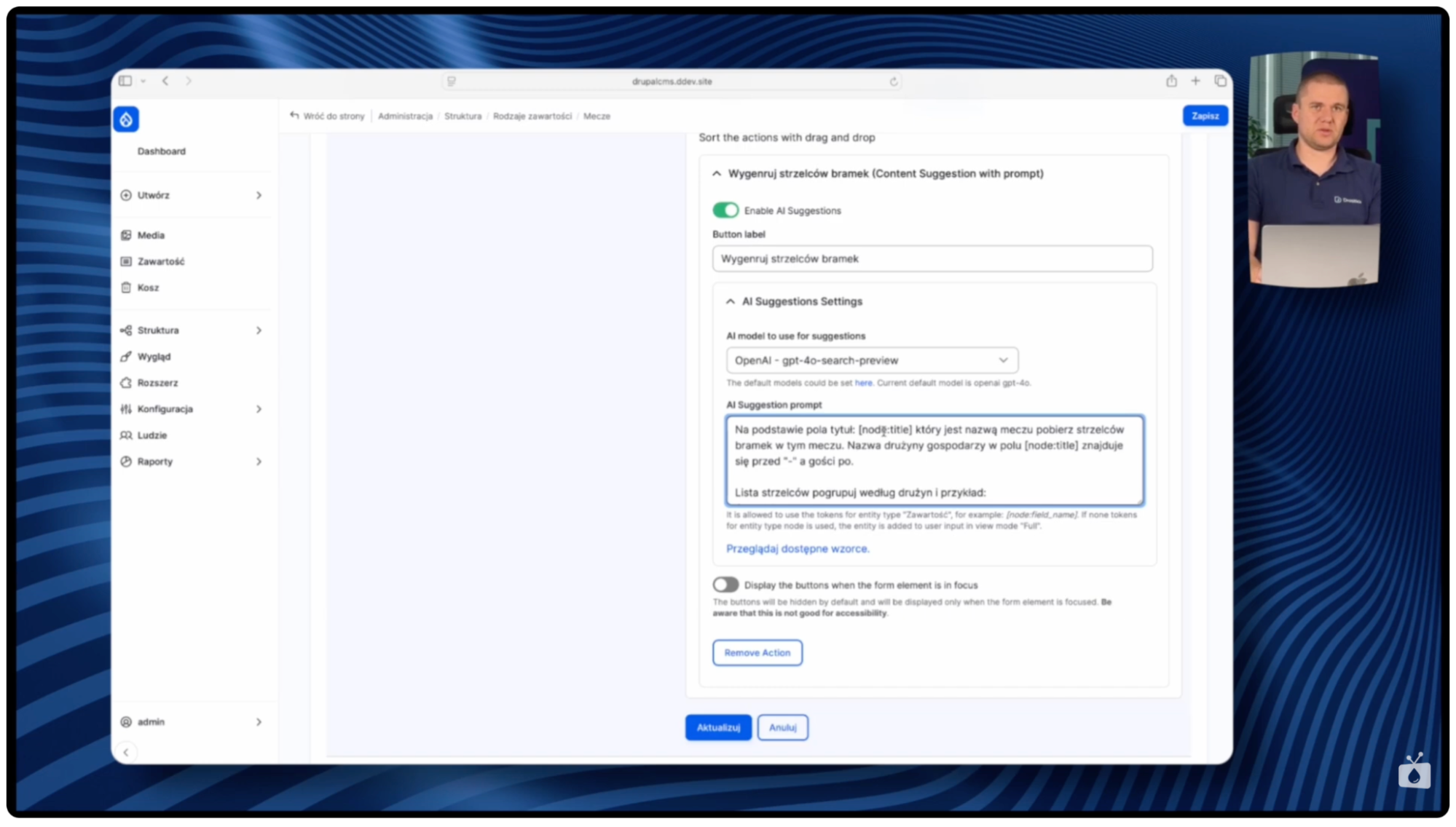
Similarly, you can proceed with the “Goalscorers” field. The prompt also bases on the match title and instructs the model to search for information about scorers and the minutes when goals were scored. The output format is also specified in detail – a list containing information about each goal along with the scorer and match minute. Thanks to this approach, the editor receives publication-ready data requiring only minor visual formatting.
How to use tokens in prompts for content generation?
One of the most advanced functionalities of the AI Automators module is the ability to use tokens in prompts. Tokens are dynamic placeholders that, at the moment of executing an AI action, are replaced with actual values from other fields of the given content. Thanks to this, you can create prompts based not only on one field but on a combination of multiple data points, which significantly expands automation possibilities.
In the example demo, the node.title token was used, which refers to the title field of the created content. When an editor clicks the lineup or goalscorers generation button, the system automatically substitutes the current title value into the prompt and passes it to the AI model. However, token possibilities are much broader. You can use practically any fields from the given content type.
Let’s consider a more advanced scenario: generating a full match description based on already generated data. You can create a prompt using tokens for several fields at once: “Create a match description based on the node field_lineups_long and field_goalscorers fields. Create a description that will describe what lineups the teams fielded and who scored and in which minute.” Such a prompt would instruct the AI model to analyze the content of the lineups field and goalscorers field, then generate a coherent, readable text describing the course of the match based on them.
What’s particularly interesting is that tokens work even before saving content. Theoretically, one could assume problems with using tokens in the form for creating a new entry because the node doesn’t yet exist in the database. However, the module handles this excellently. It can fetch the value from the title field already at the stage of filling out the form, which allows generating data even before the first content save.
Practical example: automated content creation for match reports
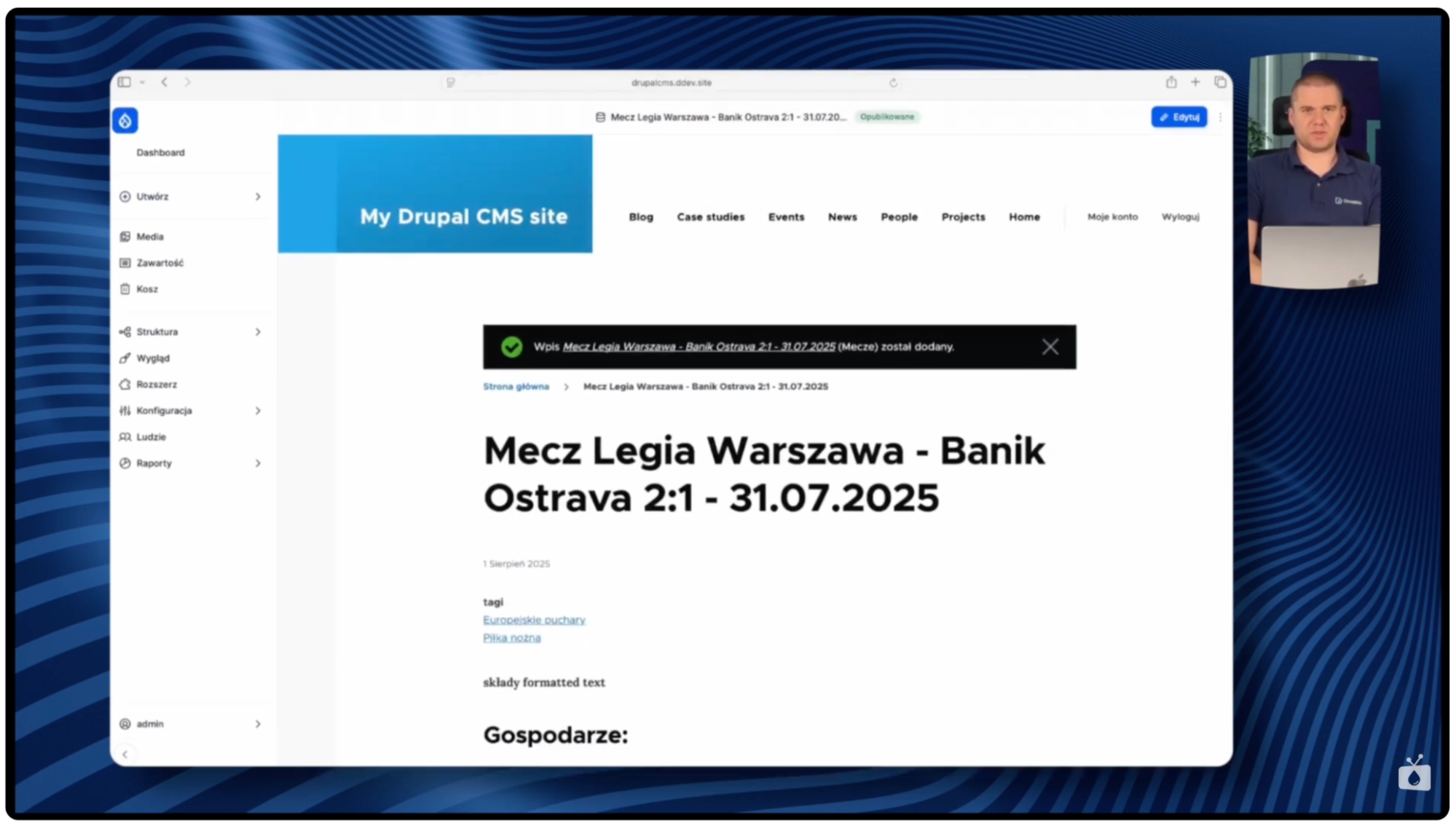
To fully illustrate the operation of the described setup, it’s worth conducting a practical test by creating a report from a match on July 31, 2024. The process starts with entering the form for creating new content of type “Matches” and filling in the title field with the match name. There’s no need to save the content – automation works already at this stage, without needing to save the entry to the database first.
Clicking the “Generate tags” button triggers system analysis of the title. After a few seconds, the tags field fills automatically with generated taxonomy values. It’s worth noting that even though the prompt is based on tokens and uses the node.title value, and the node technically doesn’t exist yet, the system handles this without problems, fetching the value directly from the filled form field.
Next, you can proceed to generating team lineups. The “Fetch lineups” button triggers AI model communication with the internet via the Search Preview function. The model searches for the current lineup of both teams and returns data in the previously defined format.
An analogous process is applied for the “Goalscorers” field. Clicking the appropriate button triggers generation of a scorer list along with goal minutes, which can then be formatted using the editor function.
After saving the content, we get a complete match report: automatically generated tags categorizing the content, full lineups of both teams, and a list of all goals with information about scorers and minutes. The entire process from an empty form to publication-ready content takes literally a dozen seconds of actual editor work, which increases editorial productivity. The remaining operations are performed automatically by artificial intelligence.
What are the applications of automated content creation for different portal types?
Although the demo is based on a sports portal example with match reports, the automated content creation possibilities are much broader. This automation mechanism can be adapted to practically any type of news portal or news service.
A stock market portal can use automated content creation to generate company analyses with quotations and financial indicators. A weather service can create text forecasts with practical tips for residents. A news portal can generate event timelines, lists of key people, and tag suggestions. An e-commerce service can automatically generate content such as product descriptions, comparisons, and FAQs. An educational portal can create biographical notes about scientists or glossaries of terms. The key is properly adjusting prompts to industry specifics.
All these scenarios share one thing: a clear reduction in time needed for the research and information gathering phase, allowing the editorial team to focus on what’s most important – creating valuable analysis, interpretation, and unique content that distinguishes the given portal from the competition.
Automated content creation in Drupal - summary
The AI Automators and Field Widget Actions modules enable powerful automated content creation in Drupal. What once required hours of manual editor work – searching for information, transcribing data, creating tags – can now be automated with a few clicks. This approach allows editors to focus on what’s most important: creating valuable analysis, interpretation, and unique content, while artificial intelligence handles tedious research tasks and data aggregation.
This setup is just the beginning of possibilities. It can be adapted to practically any type of news portal – from sports, through finance, weather, to e-commerce or educational portals. The key to success is properly defining prompts, using tokens to combine data from different fields, and configuring intuitive action buttons that will be available directly in content editing forms.
If you want to implement a similar setup in your portal, check out our AI development services. We’ll help you adjust AI automation to your project’s specifics. Or maybe you have questions about specific aspects of configuring AI Automators or Field Widget Actions modules? Feel free to contact us.
***
This article was created based on video material. Subscribe to the Nowoczesny Drupal channel. Our experts present setups or ready-made tools that will help you use Drupal’s full potential.